









NemoClaw adds a layer of security to OpenClaw to regulate business uses. Here are the key steps to install it and create a controlled customer support agent.
OpenClaw, the autonomous AI agent, already raises several reservations. His freedom of action, without strict safeguards, fascinates as much as it worries. Some specialists believe that the security guarantees are insufficient to make it deployable without risk in companies.
Fruit of the recent alliance between Nvidia and OpenClaw, NemoClaw is worked more as a reliable version for companies. This is not a new agent, but the enterprise security layer built around OpenClaw. It must protect sensitive information and eradicate possible data leaks caused by agents. The innovation is based on NvidiaOpenShell. This security shield integrates directly into the OpenClaw command line. It filters actions and applies compliance rules. For example, if it detects that OpenClaw is transferring sensitive data to an unauthorized destination, it intervenes to block the operation.
Let us point out that NemoClaw is agnostic and compatible with any hardware. On the limits side, some believe that this tool lacks control.
In order to show how NemoClaw works, we will create an agent responsible for customer support and quotes. Its purpose is to read incoming emails (via a read-only connection). If a customer requests a standard quote, the agent generates a draft quote in PDF. The latter is then saved in a secure local folder, for human validation.
In this process, NemoClaw must prohibit the agent from communicating with the outside, except the authorized AI API. It must also limit access to the file system.
As we will see, the installation turns out to be a little complex.
Section 1: Prerequisites and environmental preparation
To install NemoClaw, we need a machine running Linux (Ubuntu/Debian) or macOS. On Windows we use WSL (Windows Subsystem for Linux). We work under Windows 11. It integrates a Linux subsystem (WSL) that NemoClaw uses to operate.
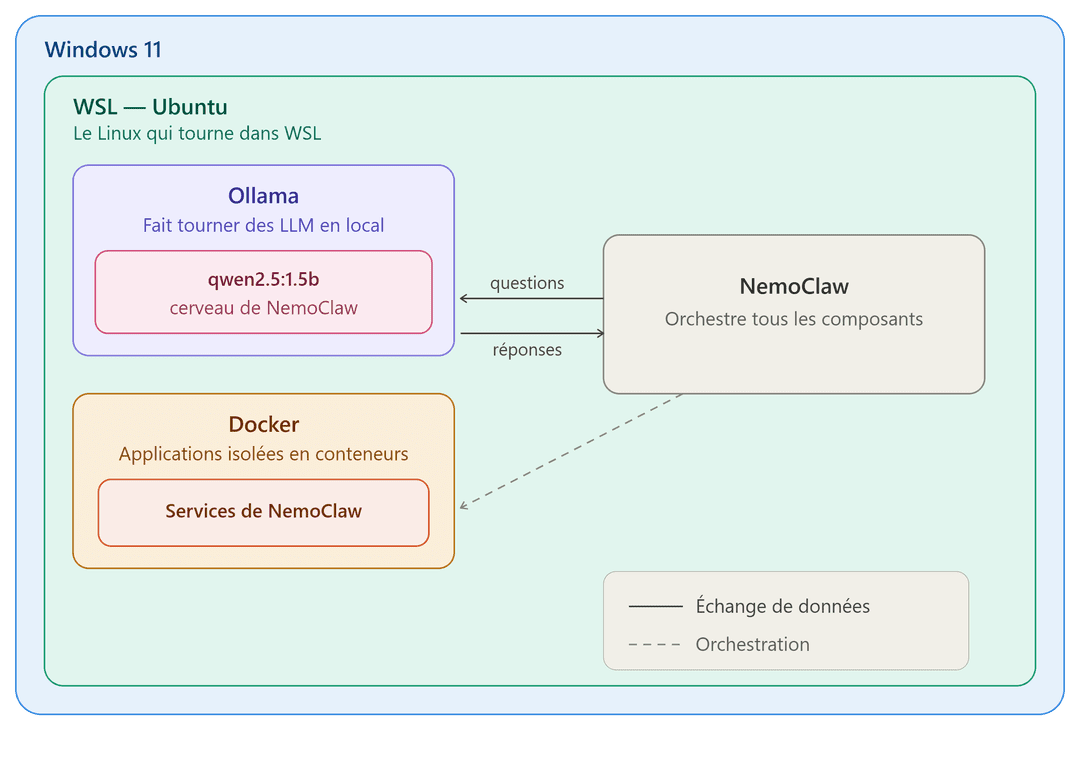
The structure of our architecture will look like this:
Windows 11
└── WSL → Ubuntu (The Linux that runs in WSL)
├── Ollama (Runs LLMs locally)
│ └── qwen2.5:1.5b (NemoClaw’s Brain)
├── Docker (Isolated applications in containers)
│ └── NemoClaw Services
└── NemoClaw (The main application that orchestrates everything)
└── Sends questions to qwen2.5 and receives answers
Step 1: install WSL
Docker Desktop uses WSL 2 as its virtualization engine on Windows. Without WSL it cannot start. To install it, we open PowerShell as administrator and run the installation command:
PowerShell
wsl --install
This command activates the necessary optional Windows features (virtualization and WSL 2) and automatically downloads the latest version of the Linux kernel as well as the default Ubuntu distribution.
Step 2: open the Linux terminal (WSL)
WSL is the engine, but it needs a Linux distribution to run. In Windows Terminal we click on the small arrow next to the + button at the top and choose “Ubuntu”. If it is not yet installed, type this command:
PowerShell
wsl --install -d Ubuntu
When you first launch Ubuntu, you have to create a username and password. Once in the Linux environment, run the following command to prepare the system:
Bash
sudo apt update && sudo apt-get install -y curl binutils zstd
Step 3: install the local AI engine (Ollama)
Ollama is the program that runs AI directly on the PC, without going through the cloud. All data remains with the user. To set it up, we type:
Bash
curl -fsSL https://ollama.com/install.sh | sh
We then download the AI model adapted to your PC: qwen2.5:1.5b. This model is light (only 1 GB on disk), compatible with the majority of configurations and works 100% locally.
We type:
Bash
ollama pull qwen2.5:1.5b
We then force start Ollama. Indeed, unlike a classic Linux system installed on a dedicated machine, WSL does not always launch services automatically at startup. Sometimes you have to start them manually. We explicitly launch the server with this command:
Bash
sudo systemctl start ollama
To test that the model works correctly, we write:
Bash
ollama run qwen2.5:1.5b
Step 4: Install Docker
We install Docker Desktop. NemoClaw uses Docker to create its secure sandbox. On Windows 11, installation is simple and guided. Go to the official website.
Step 5: deploy the NemoClaw agent
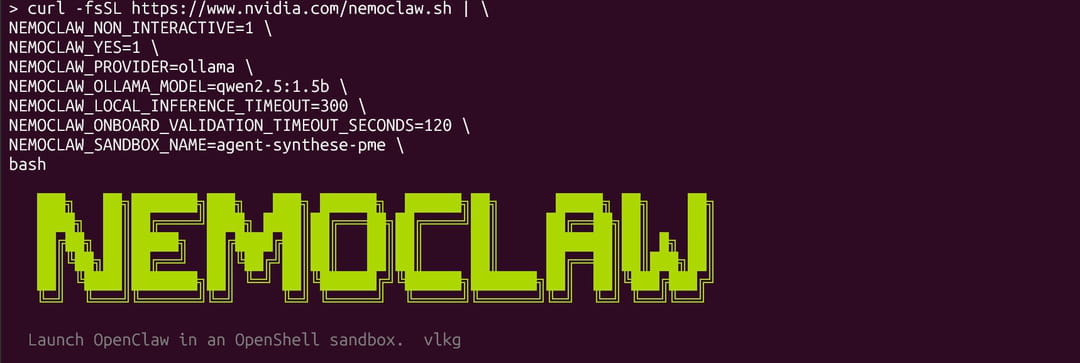
We paste this block of text into the Ubuntu terminal. It will download the NemoClaw installation script from the Nvidia servers and launch it immediately with a series of preconfigured settings (using Ollama as AI engine, qwen2.5:1.5b model and sandbox configuration).
NEMOCLAW_NON_INTERACTIVE=1
NEMOCLAW_YES=1
NEMOCLAW_PROVIDER=ollama
NEMOCLAW_MODEL=qwen2.5:1.5b
NEMOCLAW_LOCAL_INFERENCE_TIMEOUT=300
NEMOCLAW_SANDBOX_NAME=agent-synthese-pme
bash -c "NEMOCLAW_ACCEPT_THIRD_PARTY_SOFTWARE=1 $(curl -fsSL https://www.nvidia.com/nemoclaw.sh)"
NvidiaOpenShell security is automatically enabled via the NEMOCLAW_SANDBOX_NAME setting.
Section 2: setting up the agent
Our agent will operate in 3 key stages:
[E-mail du Client] ➔ (Analysis by Qwen2.5) ➔ [Si Devis demandé] ➔ (PDF generation) ➔ [Dossier Sécurisé]
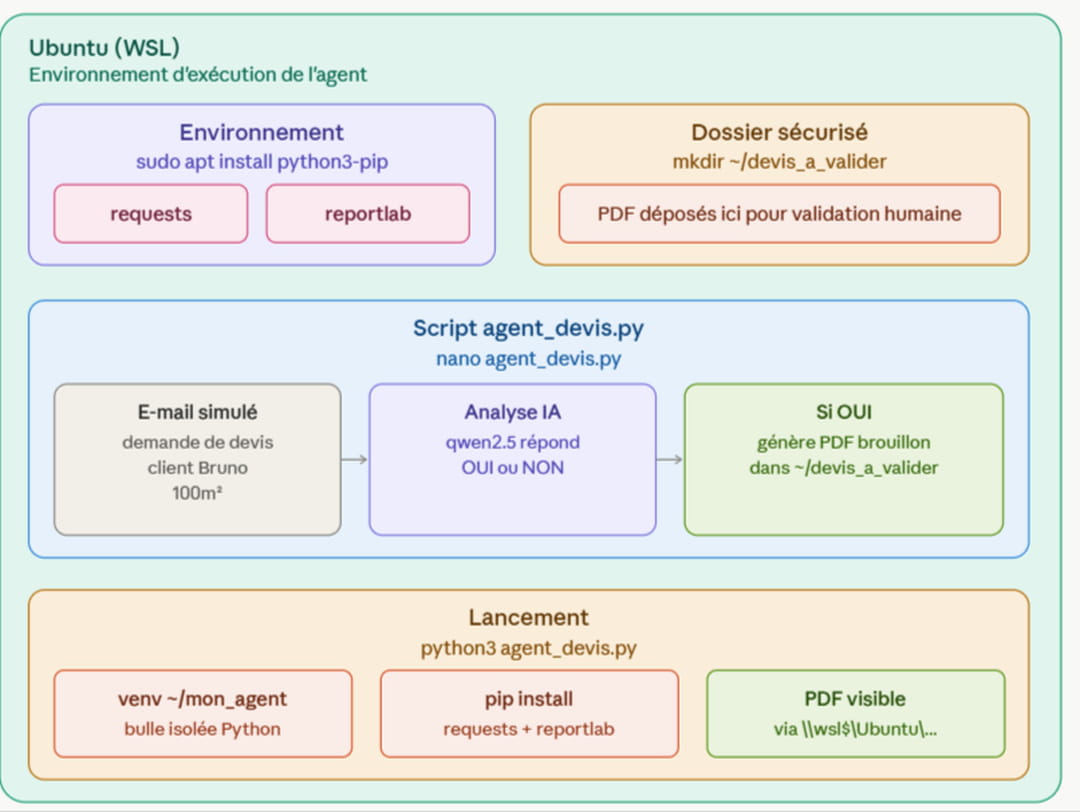
To design the agent, we will use a script in Python language.
Step 6: Prepare the environment in Ubuntu
We install pip, the Python package manager. It will be used to install the two libraries that the agent needs: requests (to communicate with the AI) and reportlab (to generate PDFs).
Bash
sudo apt install python3-pip
In this command, apt (Advanced Package Tool) is the official manager that downloads secure programs from Ubuntu servers.
Step 7: create the “secure” folder
We create a specific folder on the computer where the agent will submit the quotes in PDF format.
Bash
mkdir -p ~/devis_a_valider
Step 8: Write the agent code
We will create a file named agent_devis.py. To put it simply, we will simulate receiving a customer email directly in the code to understand how the AI reacts.
We open the text editor on the command line:
Bash
nano agent_devis.py
We paste the following code into the editor interface. This script simulates a received email, asks the AI if it is a quote request and, if the answer is positive, generates a draft PDF.
Python
cat > agent_devis.py << 'EOF'
import json
import requests
import os
from reportlab.lib.pagesizes import letter
from reportlab.pdfgen import canvas
email_client = """
Bonjour l'équipe,
Je souhaiterais obtenir un devis standard pour votre prestation de nettoyage de bureaux pour notre local de 100m2 s'il vous plaît.
Cordialement, Bruno.
"""
print("1. Analyse de l'e-mail par l'IA...")
url = "http://127.0.0.1:11434/api/generate"
prompt = f"""
Analyse l'e-mail suivant et détermine si le client demande un devis.
Réponds UNIQUEMENT par le mot "OUI" ou le mot "NON", rien d'autre.
E-mail du client :
{email_client}
"""
payload = {
 "model": "qwen2.5:1.5b",
 "prompt": prompt,
 "stream": False
}
try:
 response = requests.post(url, json=payload)
 resultat_ia = response.json()['response'].strip().upper()
 if "OUI" in resultat_ia:
 print("➔ L'IA a détecté une demande de devis ! Génération du PDF en cours...")
 chemin_pdf = os.path.expanduser("~/devis_a_valider/brouillon_devis_bruno.pdf")
 c = canvas.Canvas(chemin_pdf, pagesize=letter)
 c.drawString(100, 750, "--- BROUILLON DE DEVIS GENERE PAR L'AGENT ---")
 c.drawString(100, 710, "Client : Bruno")
 c.drawString(100, 690, "Prestation : Devis Standard (A analyser par un humain)")
 c.drawString(100, 670, "Contenu de la demande :")
 email_propre = email_client.strip().replace('n', ' ')
 c.drawString(100, 650, f"'{email_propre[:60]}...'")
 c.drawString(100, 550, "Statut : EN ATTENTE DE VALIDATION HUMAINE")
 c.save()
 print(f"Succès ! Le PDF a été sauvegardé dans : {chemin_pdf}")
 else:
 print("➔ L'IA a déterminé que ce n'est pas une demande de devis. Aucune action requise.")
 except Exception as e:
 print(f"Erreur de connexion avec Ollama : {e}")
EOF

To save and exit the Nano editor, press Ctrl + O, then Enter to save the file. Then press Ctrl + X to exit the editor.
Step 9: Launch the agent
Before launching the agent, we install python3-venv. This tool allows you to create Python virtual environments:
Bash
sudo apt install python3-venv
Ubuntu asks for the password created during initial setup.
A virtual environment is a sort of isolated bubble in which the project’s libraries are installed to prevent them from interfering with the rest of the system. We create it with the following command:
Bash
python3 -m venv ~/mon_agent
We activate it:
Bash
source ~/mon_agent/bin/activate
We install the required libraries inside this environment:
Bash
pip install requests reportlab
We finally launch our agent with this command:
Bash
python3 agent_devis.py
We see on the screen:
Qwen2.5 reads the text of the simulated email. As the text contains an explicit request, it will respond “YES” internally, and the script will instantly generate the PDF file.
To check for the document from the Windows GUI, open a regular File Explorer, type \wsl$ in the address bar at the top and press Enter. Then navigate to the folder: Ubuntu > home > [votre_nom] > quote_to_validate. The PDF file is stored securely there.
To go further: industrialization of the agent
To fully exploit this agent within your structure, gather your reference documents (FAQ, price lists, commercial policies) in PDF format in a folder named ~/documents_pme.
So that the AI does not respond randomly, the script will have to evolve into a RAG (Retrieval-Augmented Generation) mode. Before each response, the algorithm will scan your local files to give Qwen2.5 the real context of your business. Once your documents are placed in the folder, configure automation tasks to:
- Analyze the file in order to build and update the knowledge base.
- Scan your inbox at regular intervals (for example at 9 a.m. and 2 p.m.).
- Automatically write draft quotes based on your actual rates.
The agent prepares the draft. All that remains is to click on “Confirm” in your email.
Be careful however, in this tutorial, the Python agent that we deployed runs directly on the WSL host, without going through the OpenShell sandbox. To really benefit from NemoClaw protections, you will need to launch nemoclaw onboard, place the script in the sandbox via openshell sandbox upload, then execute it with openshell sandbox exec. Only at this point do filesystem restrictions, network blocking and OpenShell policies actually come into play.